
Why photos take up so much space on your iPhone
By Filip Djordjevic, who makes Gigback · Updated
Short answer: Photos takes up so much space because iPhone keeps your photos and videos in their original, high-resolution version by default. Video weighs the most: higher resolutions and faster frame rates make larger files, and ProRes video and ProRAW photos are larger still. Deleted items keep their space for 30 days in Recently Deleted. To see how much Photos uses, open Settings > General > iPhone Storage.
How do I see how much space Photos is using?
Open Settings > General > iPhone Storage, which shows whether Photos is what is taking up too much space. These are Apple’s steps:
- Open Settings, then tap General.
- Tap iPhone Storage to see recommendations and a list of apps with their storage usage.
- Tap an app’s name for more information about its storage.
In that breakdown, Photos means the photos and videos stored in the Photos app. Music, podcasts and other videos count under Media, and message attachments under Messages. If your iPhone shows a Storage Almost Full alert, Apple’s advice is to check the storage recommendations or remove some content, such as videos and apps.
Why does Photos take up so much space?
Because iPhone keeps everything at full size unless you ask it not to. Apple puts it this way: “By default, your photos and videos are stored on your device in their original, high-resolution version. This means that they use a lot of space on your iPhone and iPad.” Apple’s iPhone User Guide for iOS 27 lists photos and videos first among the common sources of storage use.
Some items weigh far more than others: video, the Pro formats, and the Camera format you record in. For what to clear first, see how to free up iPhone storage.
How much space does a minute of iPhone video take?
About 65 MB for a minute at 1080p and 30 fps, the default, by the figure iOS itself gives. Settings > Camera > Record Video lists what a minute takes at every setting your iPhone offers. For iPhone 17 Pro, with High Efficiency on, iOS 26.4 gives:
- 45 MB with 720p HD at 30 fps
- 65 MB with 1080p HD at 30 fps (the default)
- 190 MB with 1080p HD at 120 fps
- 150 MB with 4K at 24 fps
- 190 MB with 4K at 30 fps
- 440 MB with 4K at 60 fps
- 800 MB with 4K at 120 fps
Your list may be shorter, since it shows only what your model can record. Apple’s article on compressing a video gives a figure for something else: about 70–105 MB for a minute of 1080p exported from iMovie. The rule behind all of it is Apple’s: “Faster frame rates and higher resolutions result in larger video files.”
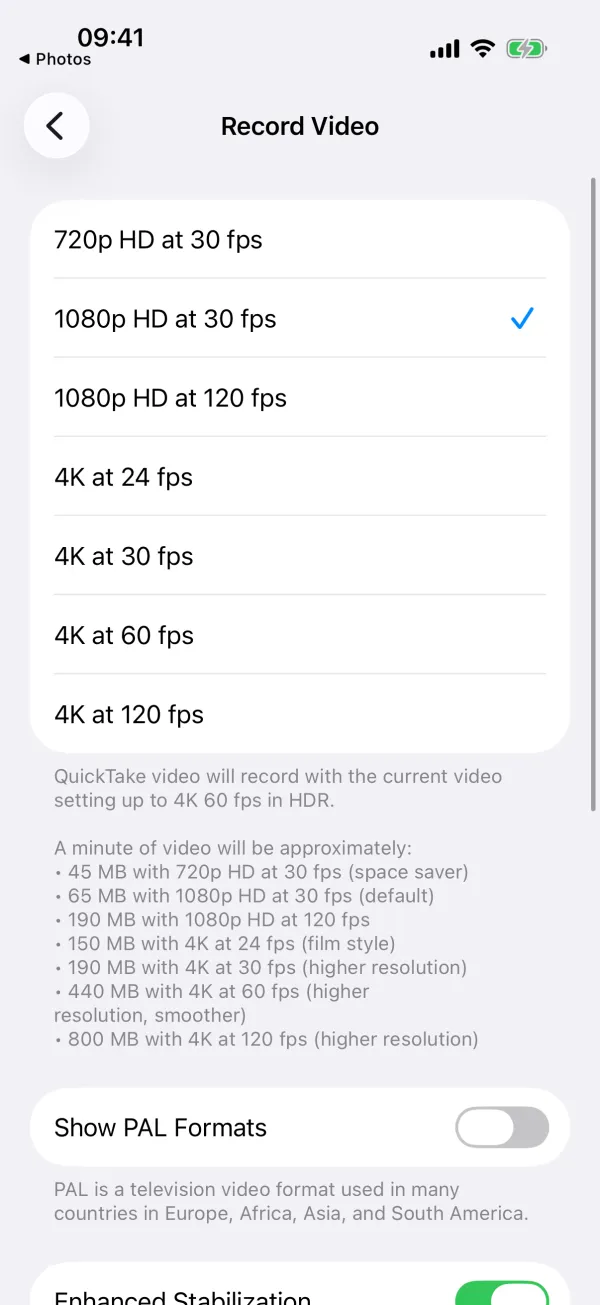
Depending on your model, iPhone records formats such as HD and 4K, at 24, 25, 30, 60 or 120 fps. You choose in Settings > Camera > Record Video, or in the Camera app by tapping the resolution and frame rate values in Video mode. Apple’s advice for consistently smaller video files is to “choose a resolution lower than 1080p HD (the default resolution setting), turn off HDR Video, and make sure High Efficiency is selected.”
Those settings change what you record next. To find the videos already taking the most room, see how to find the largest videos on iPhone.
How much bigger are ProRes videos and ProRAW photos?
Much bigger, by Apple’s own figures. Both are formats for supported Pro models.
- ProRes video: Apple says “ProRes files are up to 30 times larger than HEVC files,” and that recording in ProRes needs at least 10 percent of your iPhone’s storage to be free. It is turned on in Settings > Camera > Formats. In iOS 27 on iPhone 18 Pro models, turning it on the first time means reserving Pro Video Storage, and Apple says you can later change that amount, or remove the reserved storage to reclaim space, under Configure Pro Video Storage on the same screen.
- ProRAW photos: Apple says ProRAW files “are 10 to 12 times larger than HEIF or JPEG files,” and larger still at 48 MP. A ProRAW image is approximately 25 MB at 12 MP and approximately 75 MB at 48 MP.
Of ProRAW files, Apple warns that if you store them on your device, “you might run out of space more quickly than you expect.”
Does High Efficiency or Most Compatible use less space?
High Efficiency uses less. With it, iPhone captures photos as HEIF and videos as HEVC, and Apple says these “offer better compression than JPEG and H.264, so they use less storage space on your devices and iCloud Photos, while preserving the same visual quality.” Most Compatible captures JPEG and H.264 instead, which are more broadly compatible with other devices. To choose between them:
- Open Settings, then tap Camera.
- Tap Formats, then tap High Efficiency or Most Compatible.
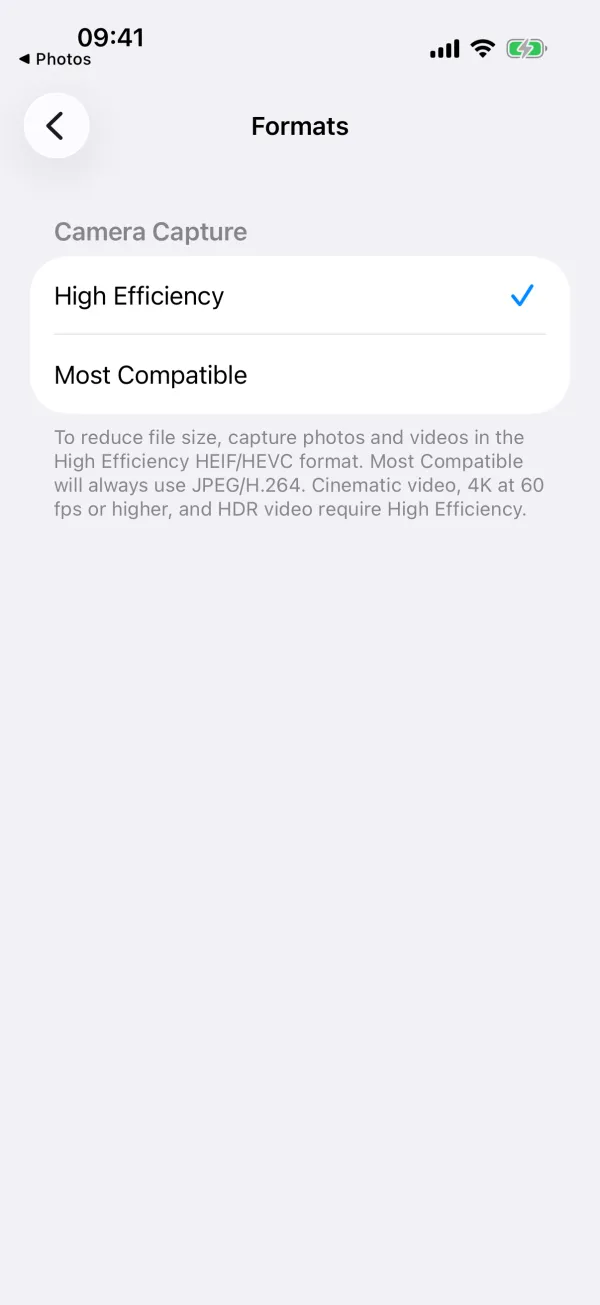
Apple says that with Most Compatible, “all new photos and videos will now use JPEG or H.264 format,” so the setting decides what you capture from then on, not what is already in your library. To shrink a video you already have, see how to compress videos and photos on iPhone.
Do Live Photos take up more space?
Apple does not say how much space a Live Photo uses, or how it compares with a still photo, so this guide gives no figure. What Apple does say is what a Live Photo holds: your iPhone records what happens 1.5 seconds before and after you take a picture, including the audio. Live Photo is on by default.
To stop taking them, open the Camera app in Photo mode, tap the Camera Controls button, then tap Live. In iOS 27, choose Off; in iOS 26, tap again to switch to Live Off. The Camera app turns Live Photo on again automatically, so to keep it off, open Settings, tap Camera, tap Preserve Settings, and make sure the switch next to Live Photo is turned on. Live Photos you already have are in Collections, under Media Types. Apple’s guide also lets you turn one into a still photo in Edit, but does not say whether that frees any space.
Does Download and Keep Originals use more space?
It does on your iPhone, if you use iCloud Photos. Apple says “photos and videos that you keep in iCloud Photos use your iCloud storage and your device storage,” and a setting decides what is kept on the device. With Optimize iPhone Storage, which is on by default, “all your full‑resolution photos and videos are stored in iCloud in their original formats, with storage-saving versions kept on your iPhone.” When your iPhone needs more space, iCloud Photos optimizes the library, starting with the photos and videos you access least.
Download and Keep Originals is the other choice, and it is how Apple’s guide turns Optimize off. That leaves your iPhone with the default described above: originals at full resolution. Both choices are on the screen these steps lead to. To turn Optimize on:
- Open Settings, tap your name, tap iCloud, then tap Photos.
- Turn on Sync this iPhone.
- In iOS 27 or later, tap iPhone Storage.
- Make sure Optimize iPhone Storage is turned on.
The whole library still counts against your iCloud storage, and every account starts with 5 GB free. What Optimize iPhone Storage does covers the trade in full.
How long do deleted photos keep using space?
Up to 30 days. Apple keeps deleted photos and videos in the Recently Deleted collection for 30 days before removing them from your iPhone, iCloud and your other devices, so deleting does not lower the Photos figure right away. To get the space back sooner, delete the items from the Recently Deleted collection itself, below Utilities in Collections. Anything you delete there can’t be recovered. Why deleted photos still take up space covers the rest, including why deleting frees little with Optimize iPhone Storage on.
How Gigback handles this
Gigback: Photo & Video Cleaner, by Filip Djordjevic, shows the date and size on every photo and video, and you can start with the whole library, an album, or just Videos or Screenshots, and go largest first. Its Smart tab analyzes your library on your iPhone and groups Large videos: 50 MB and up, largest first, with nothing in that group preselected. A swipe deletes nothing: you review the bin, take back what you want, and delete the rest after iOS asks you to confirm.
Its compression saves smaller copies of photos and videos, but leaves Live Photos and RAW photos alone, because they have features the compressor cannot keep. And bulk compression, part of Gigback Pro, never downloads originals from iCloud: with Optimize iPhone Storage, items stored only there are skipped and counted separately.
Sources
- Apple Support: How to check the storage on your iPhone and iPad
- iPhone User Guide: Manage storage on iPhone
- Apple Support: Manage your photo and video storage
- iPhone User Guide: Record a video with your iPhone camera
- Apple Support: Compress a video on iPhone
- iPhone User Guide: Record ProRes video with your iPhone camera
- Apple Support: About Apple ProRes on iPhone
- iPhone User Guide: Take Apple ProRAW photos with your iPhone camera
- Apple Support: About Apple ProRAW
- Apple Support: Using HEIF or HEVC media on Apple devices
- iPhone User Guide: Take Live Photos with your iPhone camera
- Apple Support: Take and edit Live Photos
- iPhone User Guide: Edit Live Photos on iPhone
- Apple Support: Set up and use iCloud Photos
- iPhone User Guide: Back up and sync your photos and videos with iCloud
- iPhone User Guide: Delete or hide photos and videos on iPhone
- Apple Support: Delete photos on your iPhone or iPad