
How to find the largest videos on iPhone
By Filip Djordjevic, who makes Gigback · Updated
Short answer: To find large videos on iPhone, open Photos, tap Collections, scroll down to Media Types and tap Videos. Photos sorts by date, not by file size, so open a video and swipe up, or tap the Info button, to see how big it is. Delete the ones you no longer need, then empty Recently Deleted, because deleted videos keep their space there for 30 days.
Can Photos sort videos by file size?
No, not in any way Apple documents. In Apple’s iPhone User Guide for iOS 26, the library sorts two ways, Sort by Recently Added and Sort by Date Captured, and the albums you create sort newest to oldest, oldest to newest or in a custom order. The guide for iOS 27 calls the library options Added and Captured, and adds a sort for collections such as Videos: Newest First or Oldest First. None of them sorts by size.
Filters narrow what you see, but they do not rank it. In the library, tap the Sort and Filter button. In iOS 26, tap Filter, then tap Videos. In iOS 27, tap the filter you want; Apple says the Media Types filter displays only photos, videos or screenshots. Either way, the result is still in date order, so in Photos the only way to find the biggest videos is to check them one at a time.
Where are all my videos in Photos?
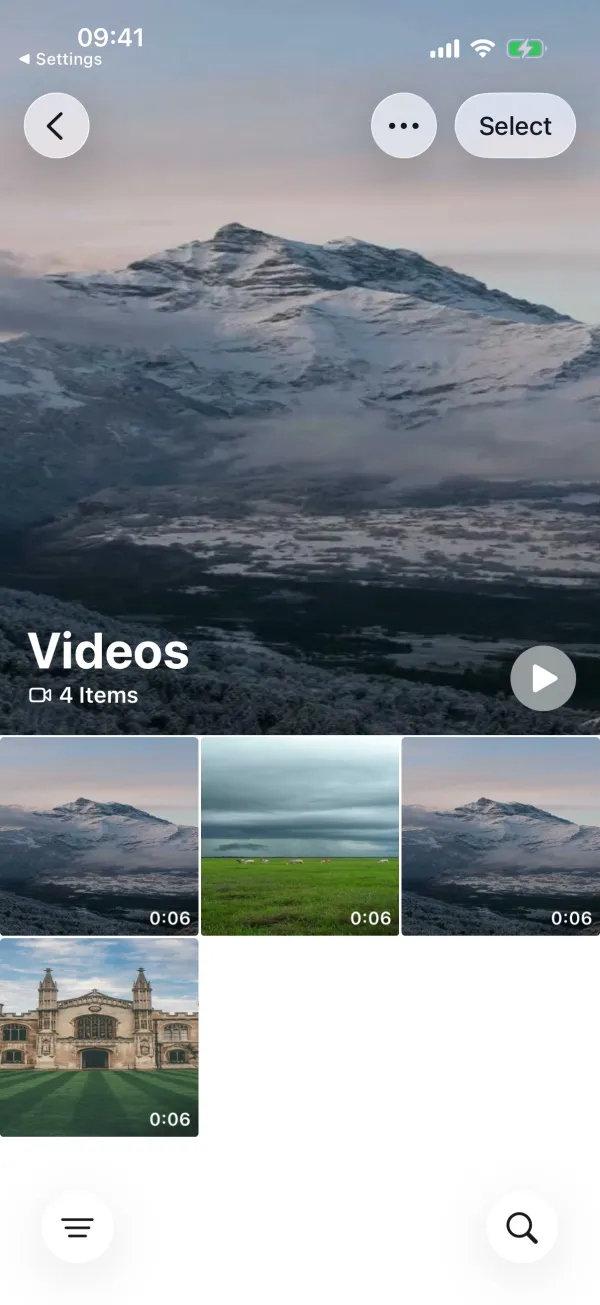
They are gathered in the Videos collection, under Media Types. These are Apple’s steps:
- Open Photos.
- Tap Collections, then scroll down to Media Types.
- Tap a collection like Videos, or tap Media Types to see more.
By default, Videos is also one of the Pinned collections at the top of Collections, with Favorites, Recently Saved, Map and Screenshots. Apple’s article on this is written for iOS 26; its iOS 27 guide gives the same path: tap Collections, scroll down, then tap Media Types.
How do I see a video’s file size on iPhone?
Open the video and look at its information. These are Apple’s steps:
- In the Photos app, tap the video to open it.
- Swipe up, or tap the Info button.
- Find the file size under the name of the device that recorded the video, along with other technical details.
- Swipe down, or tap the Info button again, to close it.
Apple lists file size among the camera details in that panel, next to the lens and shutter speed. The same panel shows when the video was taken, where, and which of your albums it is in, which helps when you decide what to keep. For a video saved in the Files app instead, Apple says the size appears next to the filename in list view, or under the thumbnail in icon view.
Which videos take up the most space?
Long videos recorded at a high resolution and a fast frame rate. Apple’s note on video formats is plain: “Faster frame rates and higher resolutions result in larger video files.” A minute of 4K at 60 fps is therefore larger than a minute of 1080p at 30 fps, and at the same settings a long clip is larger than a short one.
ProRes is the extreme case. On the Pro models that record it, Apple says “ProRes files are up to 30 times larger than HEVC files.” The format setting matters too. With Most Compatible, iPhone records video as H.264, and Apple says the High Efficiency format, HEVC, offers better compression and uses less storage while preserving the same visual quality.
For why each of these adds up, and Apple’s per-minute figure for 1080p video, see why photos take up so much space on iPhone.
How do I delete large videos and get the space back?
Delete them in Photos, then empty Recently Deleted. To delete several at once, Apple’s steps are:
- Open the Videos collection, or your library.
- Tap Select, then tap the videos you want to delete.
- Tap the Delete button.
With iCloud Photos, a video you delete on your iPhone is also deleted on your other devices signed in to the same Apple Account.
Deleting does not free the space at once. Apple keeps deleted photos and videos in Recently Deleted for 30 days. To clear them sooner, tap Collections, tap Recently Deleted (below Utilities), tap View Album and unlock your iPhone, then tap Select, choose the videos, tap the More button and tap Delete. Anything you delete there can’t be recovered. Why deleted photos still take up space
If you use iCloud Photos with Optimize iPhone Storage, your iPhone may hold only a space-saving version of a video you rarely watch, while the full-resolution original is in iCloud. Deleting that video frees its full size in iCloud, but less on the iPhone. See what Optimize iPhone Storage does before you count on the space. Large videos are one of several places to look; how to free up iPhone storage covers the rest, in order.
Can I keep a video but make it smaller?
Yes. Apple’s way is its free iMovie app: “Add the video to an iMovie project, then export the video at a lower resolution.” When you export, you choose 720, 540 or 360. Apple puts a one-minute video at about 70–105 MB at 1080p, the default, against about 19–27 MB at 720. Apple’s article is written for an iPhone 12 or later with iOS 26 or later. The export is a new video, so the original keeps its space until you delete it. How to compress videos and photos on iPhone has Apple’s full steps, and what a smaller copy should keep before the original goes.
How Gigback handles this
Gigback: Photo & Video Cleaner, by Filip Djordjevic, shows the date and size on every photo and video. You can start with just Videos and go largest first, then swipe left to put a video in Gigback’s review bin, or right to keep it.
Its Smart tab analyzes your library on your iPhone, and your photos are never uploaded for analysis. One of its groups is Large videos: 50 MB and up, largest first. Nothing in Large videos is preselected at all.
A swipe deletes nothing. You review the bin, largest first, take back what you want, and delete the rest in one go, after iOS asks you to confirm. Deleted items then wait in Recently Deleted for 30 days, and the screen after a delete says so, with a button that opens Photos.
For a video you want to keep, Gigback saves a smaller copy that keeps the original’s albums, favorite, location and date, and puts the original in the review bin. Every scan group is free to look through, as is one cleanup of up to 20 items, and Free includes 10 compressions in total; what each includes is on the support page.
Sources
- iPhone User Guide: Sort and filter the photo library on iPhone (iOS 27)
- iPhone User Guide: Sort and filter the photo library on iPhone (iOS 26)
- iPhone User Guide: Filter and sort photos and videos in albums on iPhone
- iPhone User Guide: Browse your photo collections on iPhone
- Apple Support: Find your Favorites and albums in Photos on your iPhone or iPad
- iPhone User Guide: Locate photos and videos by media type on iPhone
- iPhone User Guide: See photo and video information on iPhone
- Apple Support: Compress a video on iPhone
- iPhone User Guide: Record a video with your iPhone camera
- Apple Support: About Apple ProRes on iPhone
- Apple Support: Using HEIF or HEVC media on Apple devices
- iPhone User Guide: Delete or hide photos and videos on iPhone
- Apple Support: Delete photos on your iPhone or iPad
- Apple Support: Set up and use iCloud Photos